Skip to content

7.5 TTS/Audio Playback Section

The A2 robot is equipped with a speaker that can perform TTS announcements when connected to the internet. Without an internet connection, it can play basic audio files and adjust volume. It also supports queue playback, playback status queries, and interruption control logic.

Interface Name pb:/aimdk.protocol.TTSService/PlayTTS
Function Summary TTS announcement interface, requires internet connection
Interface Type HTTP JSON RPC
URL http://192.168.100.110:59301/rpc/aimdk.protocol.TTSService/PlayTTS
Input Parameters
{
  "text": "你好",
  "priority_level": "INTERACTION_L6",
  "domain": "example",
  "trace_id": "hafhjkqwjwefk",
  "is_interrupted": true
}
  • text: The text content to be announced
  • priority_level: Priority level, keep as INTERACTION_L6
  • domain: Identifier for the calling party, can be a custom client string for easier troubleshooting, etc.
  • trace_id: Announcement ID, if you need to get the announcement status, this field must be passed, and its value should be used as a parameter to query the announcement status
  • is_interrupted: Whether to interrupt announcements of the same priority, default to true, use false for queue announcements
Output Parameters
{
  "text": "你好",
  "priority_level": "INTERACTION_L6",
  "priority_weight": 0,
  "domain": "example",
  "trace_id": "hafhjkqwjwefk_18bZZLTk5VfJGSy8Cylsu4",
  "is_sucess": true,
  "error_message": "",
  "estimated_duration": 0a
}
  • text: The text content to be announced
  • priority_level: Priority level, no need to pay attention
  • priority_weight: Priority weight, no need to pay attention
  • domain: Identifier for the calling party, returns the custom string passed in the request, for easier troubleshooting
  • trace_id: Announcement ID, returns the custom string passed in the request + a random string, used for querying the announcement status, etc.
  • is_success: Whether the priority check was successful, generally true, does not mean it will play, for example, passing an incorrect or non-existent file name will still return true, only returns true if there is a higher priority content being announced, such as a fault alarm
  • error_message: Error message
  • estimated_duration: Invalid field, no need to pay attention, cannot estimate playback duration
Example Script examples/agent/tts_broadcast.sh
Notes
  • Only supports short text requests, up to 1024 bytes, approximately 200 Chinese/English characters
  • Port number 59201 can still be used, it will automatically forward to 59301
Interface Name pb:/aimdk.protocol.TTSService/PlayMediaFile
Function Summary Audio file playback
Interface Type HTTP JSON RPC
URL http://192.168.100.110:59301/rpc/aimdk.protocol.TTSService/PlayMediaFile
Input Parameters
{
  "file_name": "wake.pcm",
  "priority_level": "INTERACTION_L6",
  "domain": "example",
  "trace_id": "hafhjkqwjwefk",
  "is_interrupted": true
}
  • file_name: File name (supports relative or absolute paths. If a relative path is used, the file is read by default from the ORIN /agibot/data/var/hal_audio/file directory, e.g., you can pass wake.pcm. If an absolute path is used, the file is read from the specified path, e.g., /agibot/data/home/agi/Desktop/wake.pcm. The file must be a 24kHz, 16-bit, mono PCM file.)
  • priority_level: Priority level, keep as INTERACTION_L6
  • domain: Identifier for the calling party, can be a custom client string for easier troubleshooting, etc.
  • trace_id: Announcement ID, if you need to get the announcement status, this field must be passed, and its value should be used as a parameter to query the announcement status
  • is_interrupted: Whether to interrupt announcements of the same priority, default to true, use false for queue announcements
Output Parameters
{
  "text": "wake.pcm",
  "priority_level": "INTERACTION_L6",
  "priority_weight": 0,
  "domain": "example",
  "trace_id": "hafhjkqwjwefk",
  "is_sucess": true,
  "error_message": "",
  "estimated_duration": 0
}
  • text: File name
  • priority_level: Priority level, no need to pay attention
  • priority_weight: Priority weight, no need to pay attention
  • domain: Identifier for the calling party, returns the custom string passed in the request, for easier troubleshooting
  • trace_id: Announcement ID, returns the custom string passed in the request, used for requesting announcement status or interruption
  • is_success: Whether the priority check was successful, generally true, does not mean it will play, for example, passing an incorrect or non-existent file name will still return true, only returns true if there is a higher priority content being announced, such as a fault alarm
  • error_message: Error message
  • estimated_duration: Invalid field, no need to pay attention, cannot estimate playback duration
Example Script examples/agent/play_media_file.sh
Notes
  • Supports standard 44-byte header Linear PCM wav files, other header formats and compressed formats are not supported, recommend using 24kHz, 16-bit, mono PCM files
  • If an incorrect or non-existent file name is passed, it will silently fail without playing, and is_success will return true
  • Port number 59201 can still be used, it will automatically forward to 59301

7.5.4 TTS/Audio File Playback Status Query RPC Interface

Section titled “7.5.4 TTS/Audio File Playback Status Query RPC Interface”
Interface Name pb:/aimdk.protocol.TTSService/GetAudioStatus
Function Overview TTS/Audio file playback status query
Interface Type HTTP JSON RPC
URL http://192.168.100.110:59301/rpc/aimdk.protocol.TTSService/GetAudioStatus
Input Parameters
{
  "trace_id": "hafhjkqwjwefk"
}
  • trace_id: Broadcast ID, fill in the custom ID passed when calling the PlayMediaFile interface
Output Parameters
{
  "tts_status": {
    "text": "",
    "priority": 0,
    "trace_id": "",
    "tts_status": "TTSStatusType_Playing",
    "domain": "",
    "error_message": ""
  }
}
  • tts_status: Broadcast status, enumeration values

    • TTSConfigStatusType_Unknown: Unknown status
    • TTSStatusType_Begin: Start broadcasting, brief, generally this status cannot be queried
    • TTSStatusType_Playing: Broadcasting
    • TTSStatusType_End: End of broadcast, brief, generally this status cannot be queried
    • TTSStatusType_Stop: Pause broadcast/Cancel broadcast/Interrupt broadcast
    • TTSStatusType_Error: Broadcast failed
    • TTSStatusType_InQue: In the broadcast queue, not yet started
    • TTSStatusType_NOTInQue: No such text in the broadcast queue, and not broadcasting, enters this state after the broadcast ends
  • The rest of the fields are invalid and do not need to be concerned

Example Script examples/agent/tts_status_rpc.sh
Notes
  • A successful broadcast will generally return InQue, Playing, and NOTInQue states through this RPC interface
  • Port number 59201 can still be used and will automatically forward to 59301

7.5.5 TTS/Audio File Playback Status Topic Interface

Section titled “7.5.5 TTS/Audio File Playback Status Topic Interface”
Interface Name /interaction/tts_status
Function Overview TTS/Audio file playback status
Interface Type ROS2 Topic
Output Parameters
{
  "text": "你好",
  "priority": 600,
  "trace_id": "hafhjkqwjwefk_5WC7uy69bqCuO101aalJ1T",
  "tts_status": "TTSStatusType_End",
  "domain": "example",
  "header": {
    "seq": 110
  }
}
  • text: File name

  • trace_id: Broadcast ID

  • domain: Caller source

  • tts_status: Broadcast status, enumeration values

    • TTSConfigStatusType_Unknown: Unknown status
    • TTSStatusType_Begin: Start broadcasting, brief, generally this status cannot be queried
    • TTSStatusType_Playing: Broadcasting
    • TTSStatusType_End: End of broadcast, brief, generally this status cannot be queried
    • TTSStatusType_Stop: Pause broadcast/Cancel broadcast/Interrupt broadcast
    • TTSStatusType_Error: Broadcast failed
    • TTSStatusType_InQue: In the broadcast queue, not yet started
    • TTSStatusType_NOTInQue: No such text in the broadcast queue, and not broadcasting, enters this state after the broadcast ends
  • The rest of the fields are invalid and do not need to be concerned

Example Script examples/agent/tts_status_topic.py
Notes
  • The ROS2 message type for this is ros2_plugin_proto/msg/RosMsgWrapper, which requires sourcing prebuilt/ros2_plugin_proto_aarch64/share/ros2_plugin_proto/local_setup.bash before use.
  • This interface will only publish if the interaction mode is set to normal or voice_face. There will be no messages in only_voice mode.

7.5.6 TTS/Audio File Playback Interruption RPC Interface

Section titled “7.5.6 TTS/Audio File Playback Interruption RPC Interface”

We provide an interface to interrupt a single file playback and an interface to clear the entire playback queue.

Interface Name pb:/aimdk.protocol.TTSService/StopTTSTraceId
Function Overview Interrupt a single file/TTS playback
Interface Type HTTP JSON RPC
URL http://192.168.100.110:59301/rpc/aimdk.protocol.TTSService/StopTTSTraceId
Input Parameters
{
  "trace_id": "hafhjkqwjwefk"
}
  • trace_id: Playback ID, fill in the custom ID passed when calling the PlayMediaFile interface
Output Parameters
{
  "state":"CommonState_UNKNOWN"
}
  • state: Call request status, no need to pay attention to the specific value, HTTP request returning 200 indicates success
Example Script examples/agent/stop_tts.sh
Notes
  • Port number 59201 can still be used, it will automatically forward to 59301
Interface Name pb:/aimdk.protocol.TTSService/StopTTS
Function Overview Terminate all TTS/audio file playbacks, including the current playback task and all tasks in the queue
Interface Type HTTP JSON RPC
URL http://192.168.100.110:59301/rpc/aimdk.protocol.TTSService/StopTTS
Input Parameters
{}
  • trace_id: Playback ID, fill in the custom ID passed when calling the PlayMediaFile interface
Output Parameters
{
  "state":"CommonState_UNKNOWN"
}
  • state: Call request status, no need to pay attention to the specific value, HTTP request returning 200 indicates success
Example Script examples/agent/stop_all_tts.sh
Notes
  • Port number 59201 can still be used, it will automatically forward to 59301

7.5.7 Volume Retrieval and Setting RPC Interface

Section titled “7.5.7 Volume Retrieval and Setting RPC Interface”
Interface Name pb:/aimdk.protocol.HalAudioService/GetAudioVolume
Function Overview Get the current volume level
Interface Type HTTP JSON RPC
URL http://192.168.100.110:56666/rpc/aimdk.protocol.HalAudioService/GetAudioVolume
Input Parameters
{}
Output Parameters
{
  "header": {
    "code": "0",
    "msg": "GetAudioVolume successfully",
    "trace_id": "",
    "domin": ""
  },
  "audio_volume": 30,
  "is_mute": false,
  "type": "SPEAKRE_BUILT_IN"
}
  • audio_volume: Volume level, a numeric value between 0-100

  • is_mute: Whether it is muted

  • type: Speaker type

    • SPEAKRE_BUILT_IN Built-in speaker
    • SPERKER_BULETOOTH Bluetooth speaker
Example Script examples/hal_audio/GetAudioVolume.sh
Notes
Interface Name pb:/aimdk.protocol.HalAudioService/SetAudioVolume
Function Overview Adjust the volume
Interface Type HTTP JSON RPC
URL http://192.168.100.110:56666/rpc/aimdk.protocol.HalAudioService/SetAudioVolume
Input Parameters
{
  "audio_volume": 70,
  "is_mute": false,
  "type"
}
  • audio_volume: Volume level, a numeric value between 0-100, Note: Do not adjust the volume beyond 70, as exceeding this range may cause the speaker to operate beyond its rated capacity, leading to damage
  • is_mute: Whether it is muted
Output Parameters
{
  "header": {
    "code": "0",
    "msg": "SetAudioVolume successfully",
    "trace_id": "",
    "domin": ""
  },
  "pkg_name": "",
  "is_success": false
}
  • pkg_name: Invalid field, no need to pay attention
  • is_success: Invalid field, no need to pay attention
Example Script examples/hal_audio/SetAudioVolume.sh
Notes
  • To mute, set the audio_volume field to 0 and is_mute to true.

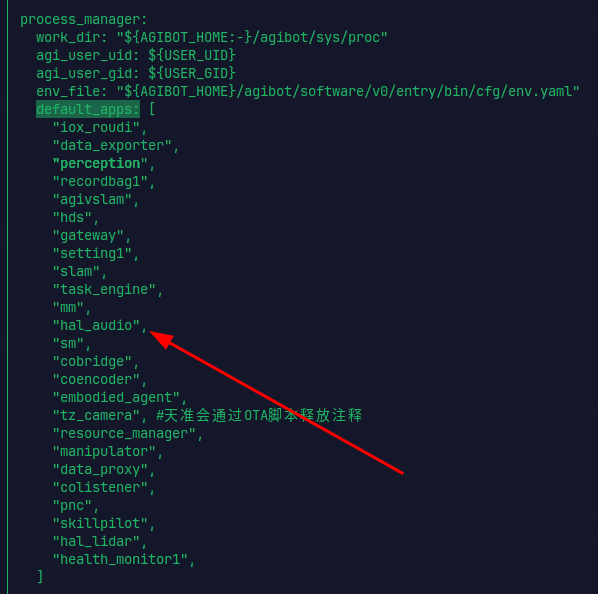
If you do not want to use the audio playback capability provided by the above agent (which calls the atomic capabilities provided by hal_audio at the bottom layer), and instead wish to use the speaker with underlying libraries such as pyaudio/alsasound for audio playback, you need to disable the hal_audio module. The method is as follows:

  1. Back up the /agibot/software/v0/entry/bin/cfg/run_agibot.yaml on ORIN.

    Terminal window
    cp /agibot/software/v0/entry/bin/cfg/run_agibot.yaml /agibot/software/v0/entry/bin/cfg/run_agibot.yaml.original
  2. Modify the default_apps section, remove the hal_audio module, and then restart the robot.

After restarting, you can use the following devices for playback. Please implement the program call yourself. For audio channel and logical device configurations, refer to the /etc/asound.conf file on ORIN.

Terminal window
aplay -D multiplay_def -c 1 -r 24000 -f S16_LE /agibot/data/var/interaction/audio/wake.pcm

Note: The volume setting of the robot’s speaker must not exceed 70%. If the volume exceeds this range, the speaker will be overdriven after being amplified by the amplifier, causing damage to the speaker.

Here are the volume control instructions:

  1. P1 Machine
  • Set playback volume
Terminal window
amixer cset name='x Headphone Volume' 15(0~31)
  • Get playback volume
Terminal window
amixer cget name='x Headphone Volume'
  • Set mute
Terminal window
amixer sset 'x Headphone Left' off
amixer sset 'x Headphone Right' off
  • Unmute
Terminal window
amixer sset 'x Headphone Left' on
amixer sset 'x Headphone Right' on
  1. T3 Machine
  • Set playback volume
Terminal window
amixer -c DefPDevice sset Speaker 80%(0~100%)
  • Get playback volume
Terminal window
amixer -c DefPDevice sget Speaker
  • Set mute
Terminal window
amixer -c DefPDevice set Speaker off
  • Unmute
Terminal window
amixer -c DefPDevice set Speaker on