
8. Guide to Motion Control Simulation
8. Guide to Motion Control Simulation
8.1 Simulation Description
We provide a mujoco-based simulation system for the A2 robot, designed to serve as a testing ground for basic calls to the A2 robot's motion control and action playback interfaces. This serves as a basic validation before actual operation, reducing the risk of damaging the robot while facilitating the debugging of secondary development program logic.
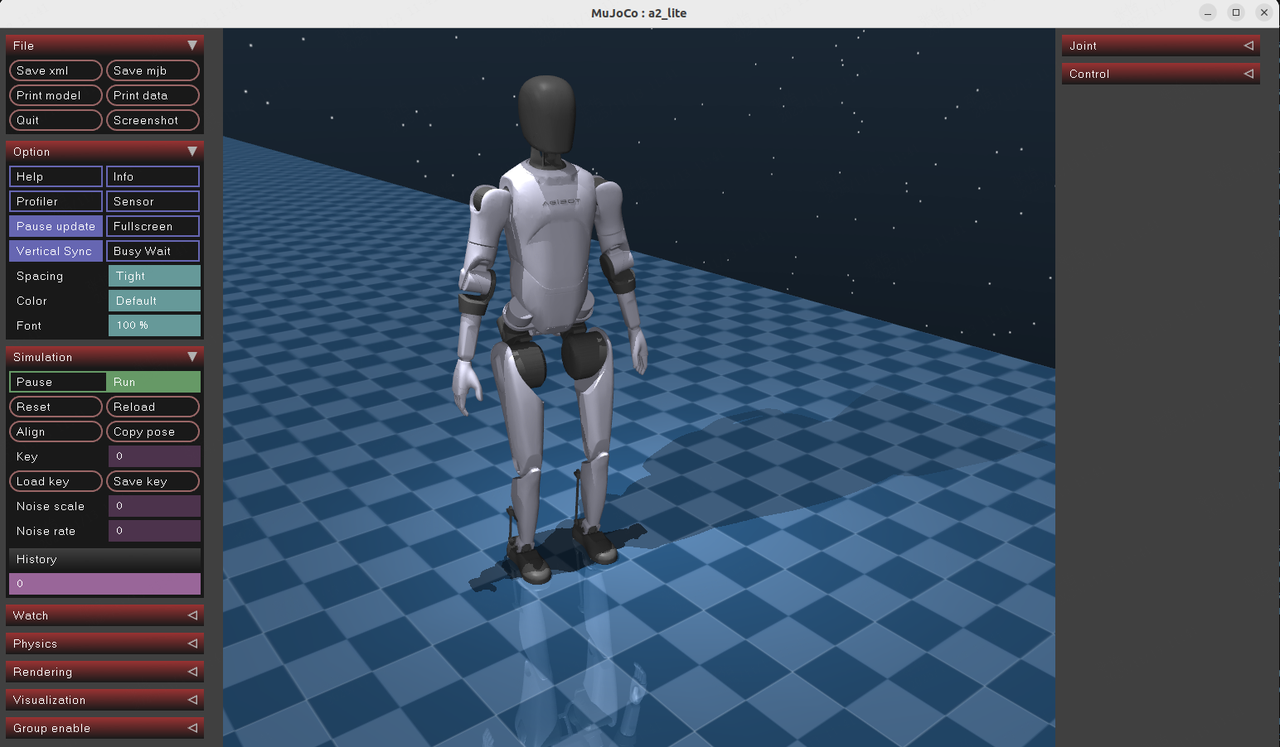
The system runs the mujoco_sim, motion_control, and motion_player components. mujoco_sim acts as the underlying simulation engine, simulating the robot's physical body and hal_ethercat. motion_control interacts with mujoco_sim to exchange control commands and states, controlling the simulated robot. motion_player then calls the high-level interfaces provided by motion_control to play actions. The motion_control and motion_player components are identical to those on the real machine, allowing the system to call all interfaces of the motion control and action playback modules.
8.2 Prerequisites
This simulation system is provided as a container image, containing executable files for each component, action resource files, and calling scripts. To use this simulation system, the following conditions must be met:
- An x86_64 architecture Linux system with Docker installed.
- Use of an X11 desktop system.
- You can check this by running
echo $XDG_SESSION_TYPE; the expected output isx11.
- You can check this by running
8.3 Usage Tutorial
8.3.1 Pulling the Image
- Log in to the image repository with a read-only account.
docker login tongyong-public-cn-shanghai.cr.volces.com -u crrobot@aima-public-reader -p Aima123456
- Pull the corresponding image.
docker pull tongyong-public-cn-shanghai.cr.volces.com/aima-public/a2-simulator:v1.3
8.3.2 Starting the Image
- Allow Docker to access the display, which is used to configure the access control list for the X Window System. Running
xhost +will allow all hosts to connect to the current user's X server, effectively disabling access control for the X server and allowing any user to access and operate it.bashxhost + - Start the Docker container.bash
docker run -it \
        --name=a2-ultra-sim \
        --privileged \
        --net=host \
        --ipc=host \
        --pid=host \
        -e DISPLAY=$DISPLAY \
        -v /tmp/.X11-unix:/tmp/.X11-unix \
        -v /run/dbus/system_bus_socket:/run/dbus/system_bus_socket:ro \
        -d tongyong-public-cn-shanghai.cr.volces.com/aima-public/a2-simulator:v1.3
If you find that the simulation interface is lagging when using an NVIDIA graphics card, try starting the container with the following command:bashdocker run -it \ --name=a2-ultra-sim \ --gpus all \ --privileged \ --net=host \ --ipc=host \ --pid=host \ -e DISPLAY=$DISPLAY \ -e NVIDIA_VISIBLE_DEVICES=all \ -e NVIDIA_DRIVER_CAPABILITIES=all \ -v /tmp/.X11-unix:/tmp/.X11-unix \ -v /run/dbus/system_bus_socket:/run/dbus/system_bus_socket:ro \ -d tongyong-public-cn-shanghai.cr.volces.com/aima-public/a2-simulator:v1.3
- Enter the container.bash
docker start a2-ultra-sim && docker exec -it a2-ultra-sim /bin/bash
8.3.3 Starting the Simulation, Motion Control, and Action Playback Modules
- Enter the image and run the following command to start the simulation.bash
docker start a2-ultra-sim && docker exec -it a2-ultra-sim /bin/bash cd /home/agi/a2_simulation/mujoco_sim_ultra_1.3/bin ./start_a2_t2d0_ultra.sh - In a new window, connect to the container and start the motion control program.bash
docker start a2-ultra-sim && docker exec -it a2-ultra-sim /bin/bash cd /home/agi/a2_simulation/motion_control_ultra_1.3.26/scripts/motion_control ./start_motion_control.sh - In another new window, connect to the container and start the action playback program.bash
docker start a2-ultra-sim && docker exec -it a2-ultra-sim /bin/bash

cd /home/agi/a2_simulation/motion_player_ultra_1.3.26/scripts/motion_player
./start_motion_player.sh
8.3.4 Controlling Robot Walking
Here, we will use robot walking as an example to explain the basic logic of calling a motion control interface. For other interfaces, refer to the motion control interface documentation and example scripts.
- Open a new window, enter the container, and switch the motion control Action to joint standing mode (RL_JOINT_DEFAULT).bash
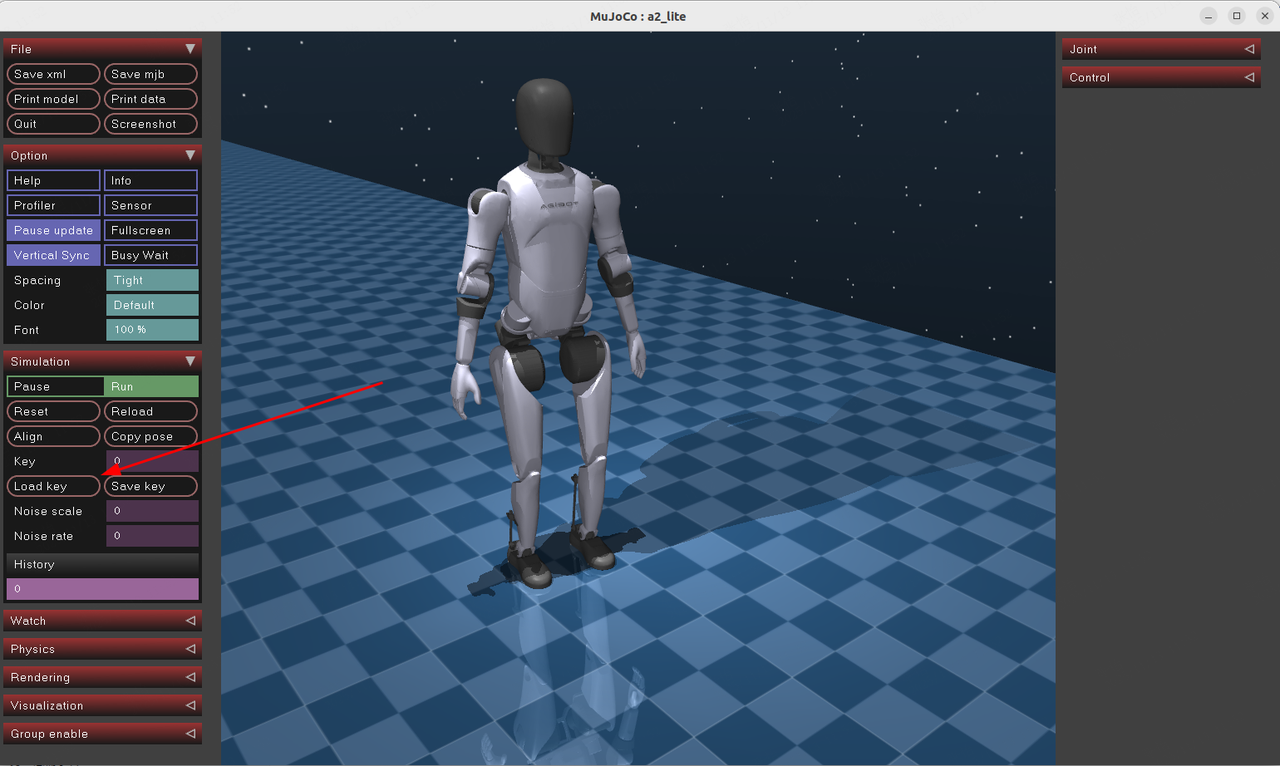
docker start a2-ultra-sim && docker exec -it a2-ultra-sim /bin/bash cd /home/agi/a2_simulation/tools-ultra/mc ./SetAction.py # Select the number corresponding to RL_JOINT_DEFAULT. - Click the Load-Key button in the mujoco_sim interface to stabilize the robot.
- Continue to switch the motion control Action to enhanced walking mode (RL_LOCOMOTION_DEFAULT).bash
./SetAction.py # Select the number corresponding to RL_LOCOMOTION_DEFAULT. - Call the walking example script.bash
source /home/agi/a2_simulation/ros2_plugin_proto_x86_64/share/ros2_plugin_proto/local_setup.bash
./walk.py
8.3.5 Controlling Robot for Action Playback
- Switch the motion control state to enhanced walking upper limb servo mode (RL_LOCOMOTION_ARM_EXT_JOINT_SERVO).bash
cd /home/agi/a2_simulation/tools-ultra/mc ./SetAction.py # Select the number corresponding to RL_LOCOMOTION_ARM_EXT_JOINT_SERVO. - Call the SendMotionCommand interface to perform the action.bash
cd ../motion_player
./send_motion_id.sh /agibot/data/resources/default/motion/演讲10s/演讲10s.mcap